

Every class has a My Work report. Students can access the My Work Report by clicking the My Work button in the Classes Panel. Students can also view the My Work report from within a class by selecting the My Work link at the top of the page.

Assessments
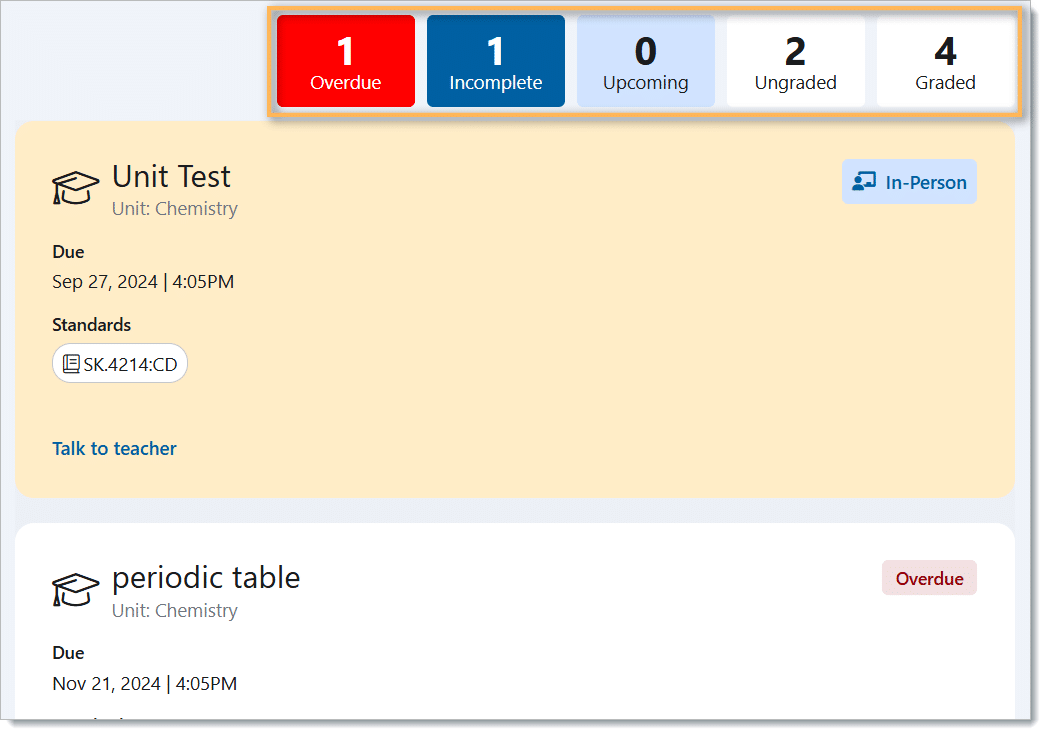
The Assessments page of the My Work Report enables students to see a breakdown of their assessment results and upcoming assessments. The top of the page indicates how many assessments are overdue, incomplete, upcoming, ungraded, and graded. Clicking on these buttons will filter the assessments page to include only those assessments.
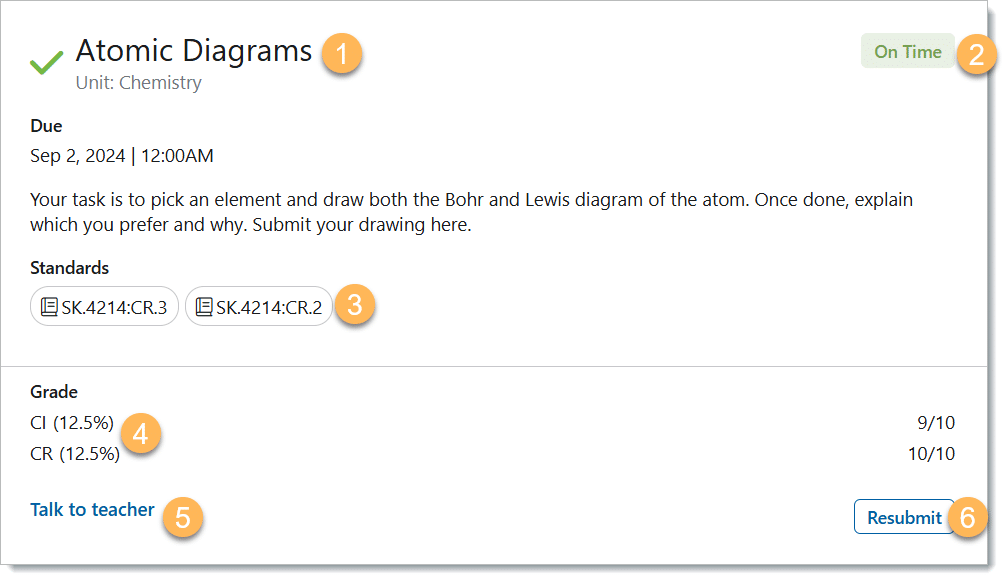
The Assessment page enables students to see all of the information that teachers have shared about an assessment:
- The name of the assessment along with any instructions or relevant files.
- The status of the assessment.
- Any standards or expectations linked to the assessment.
- The grade the student has received (if shared by the teacher).
- The discussion with the teacher about the assessment, including any comments or annotations the teacher has left the student.
- The option to submit or resubmit an assessment (if enabled by the teacher) or take an online test.
Graph
Students can view a graph of their grades for each class depicting their academic progression. To access the graph, click the drop-down arrow and select Graph. Students can zoom, pan, and view specific areas of the graph.

Standards (Expectations)
Students can see how they’re doing on each specific expectation for a class by accessing the Standards page. This tab may also be labeled as Expectations. Standards are like a checklist of skills that teachers use to assess their student’s performance in class. Typically, they are standardized for a class across a state or province.
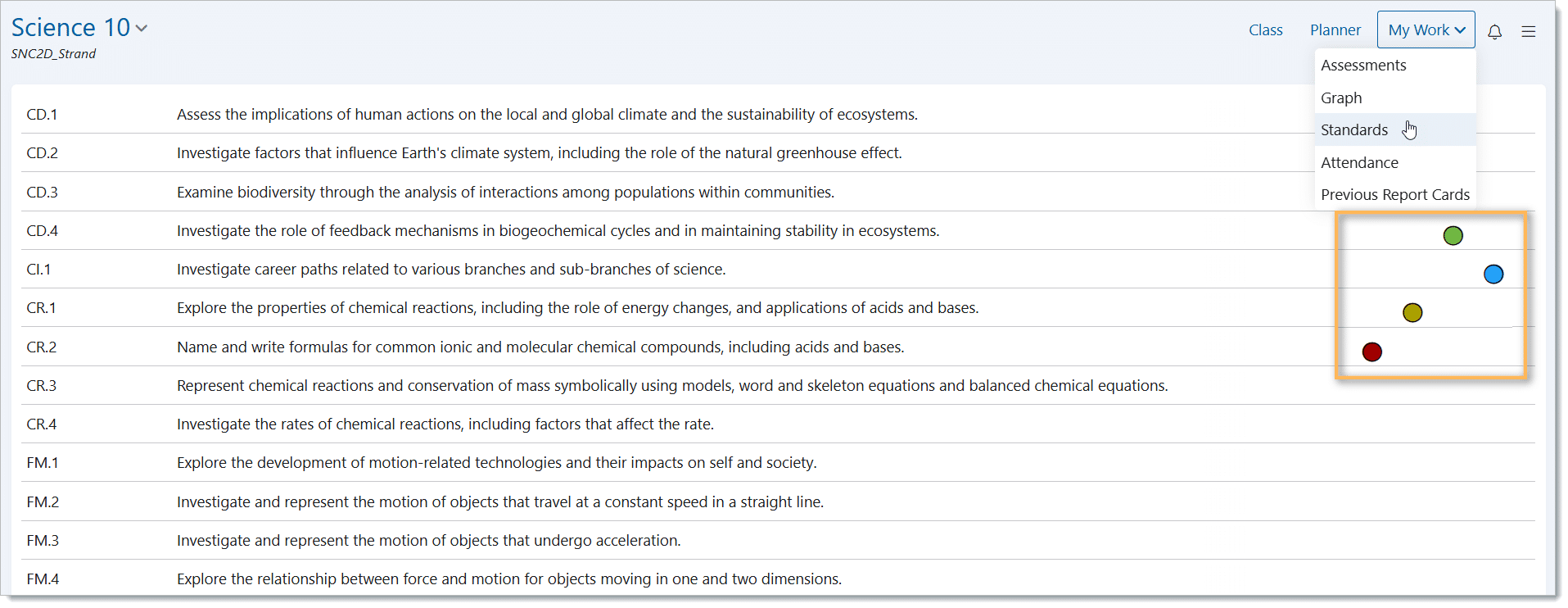
Students can not see any comments their teacher has made on expectations for the class, however, they can see the performance indicator when the teacher makes an observation on an expectation.
The performance indicators from highest to lowest are:
- Blue
- Green
- Yellow
- Red
If there are no performance indicators beside any expectations, it’s likely the teacher has chosen to assess those expectations through means other than observation (e.g. assignments, tests, projects, etc.).
Other sections of My Work
Attendance
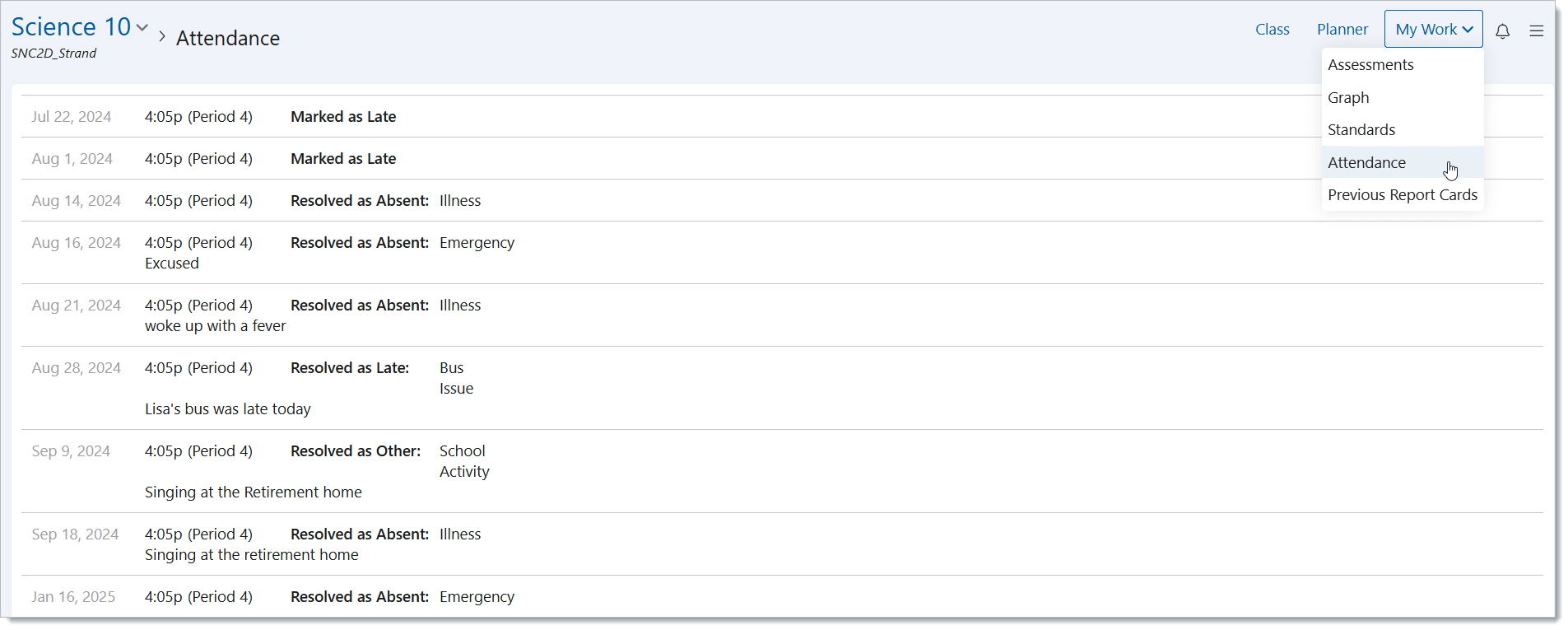
Students can also access their attendance incidents (lates and absences) by accessing the Attendance Page.
Previous Report Cards
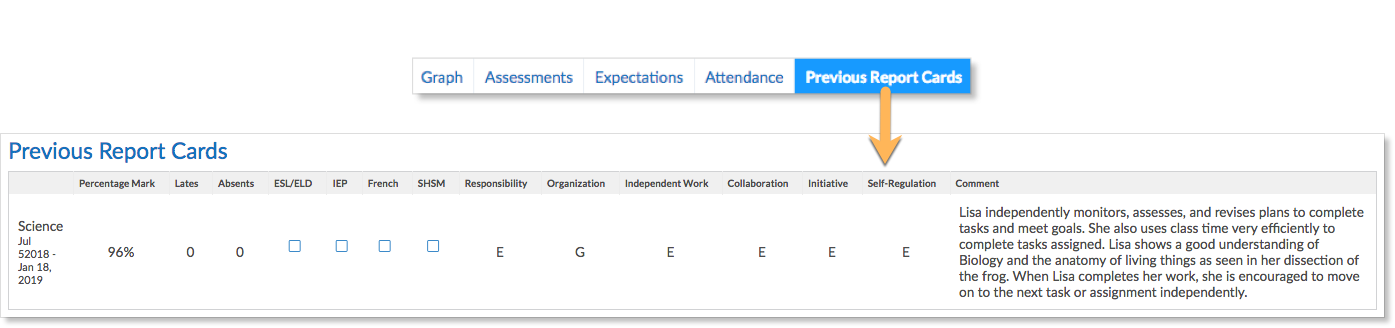
Additionally, if the school publishes Report Cards on Edsby, they can also access Previous Report Cards.
What can parents see in My Work?
Parents have the exact same view of their children’s My Work page as the student does. This means parents can see a graph of their child’s grades, along with the breakdown of their marks. They can also see performance indicators beside expectations and any attendance incidents. It goes without saying then, that parents can see their child’s previous report cards too!
For more information about what parents can see in other aspects of Edsby, click here.