

The AI Teacher Assistant is a set of tools to enhance the effectiveness and efficiency of educators in their daily tasks. These tools are available exclusively to staff; students and parents do not have access. The AI Teacher Assistant can be useful to teachers in a variety of ways, like creating question sheets, writing report card comments, critiquing student PDF submissions, summarizing threads, and composing notes for classes and groups.
Make Question Sheet tool
The AI Teacher Assistant has the ability to create question sheets for online tests based on content that has been placed in the Content Builder. For example, the teacher below has created a page that focuses on the social and political cooperation. If he wants to quiz students on this material, he can do so by using the ‘Make Question Sheet’ tool.

Clicking on Make Question Sheet will display the Make a Question Sheet form. Fill this form out to create the question sheet that best fits the needs of the class. Teachers can tie the question sheet to a specific standards from the curriculum. They can also choose the number of questions per question type. There are 4 question types to choose from: Multiple Choice, True/False, Choose all that apply, and Paragraph.
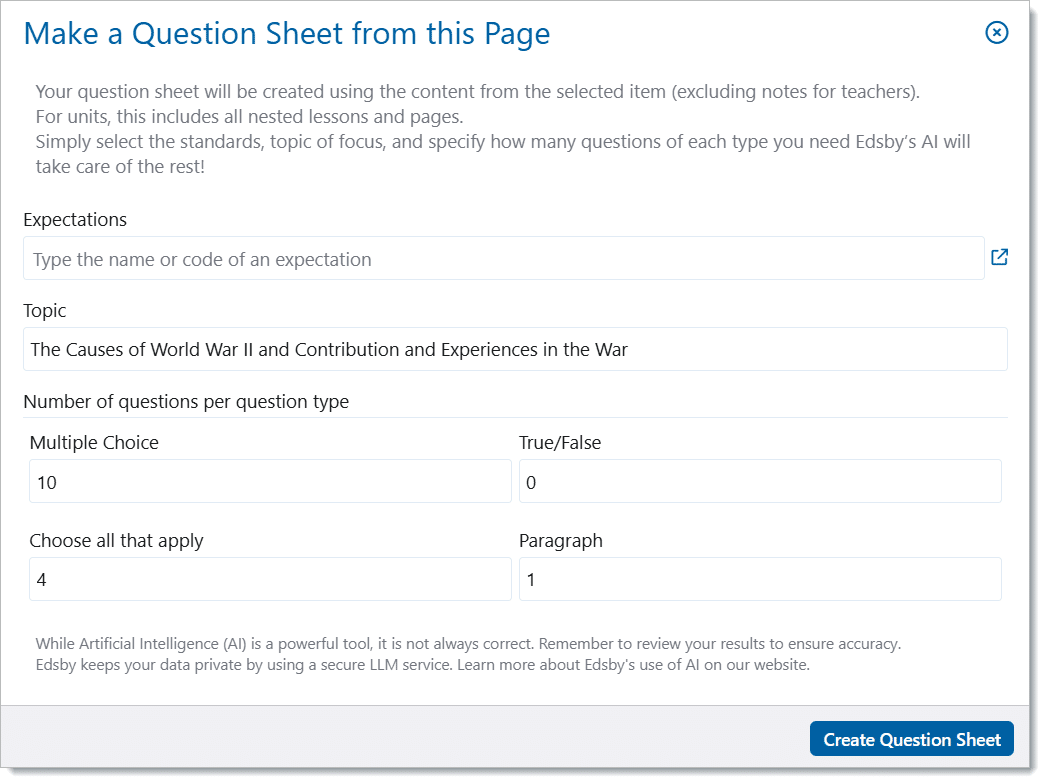
When ‘Create Question Sheet’ is clicked, the generated question sheet will open in the Personal Folder. The Question Sheet will include questions and answer stems. While AI is a powerful tool, teachers should review the question sheet before using it with their students.
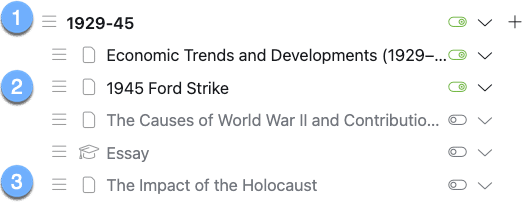
When the question sheet is generated from the Unit, it will include the pages within the unit. In this illustration, if the teacher selected Make Question Sheet with the Unit name selected (1), the question sheet would be based on all associated pages, including the pages that are hidden (3) from the students. The inclusion of the hidden items, enables the teacher to create the unit test in advance of completing the unit. If the teacher selected Make Question Sheet with a page selected (2), the question sheet would be based on selected page only. If the teacher added curriculum standards to the Make Question Sheet form, the text of the standard would be used as part of data set for creating the question stems and answers.
Overall, the ‘Make Question Sheet’ tool can be useful for teachers who wish to save time in their day by having the AI Teacher Assistant make the question sheet for them, based on their own content or curriculum standards.
Report Card Comment Assistant tool
The Comment Assistant tool is available in comment fields within a report card sheet. The comment assistant can be used in a variety of ways:
- Writing a paragraph based on point form.
- Creating a more detailed comment based on the existing comment.
- Creating asset-based comments.
- Shortening a comment to meet character limits.
- Changing tone.
- Fixing grammar and spelling errors.
In this illustration, the teacher has added three statements about the student. One of the statements has a typo (builing) and an incorrect word (texting). In the Comment Assistant, the teacher has selected the Professional prompt. The suggested comment is in paragraph form and both the typo and incorrect word have been fixed.

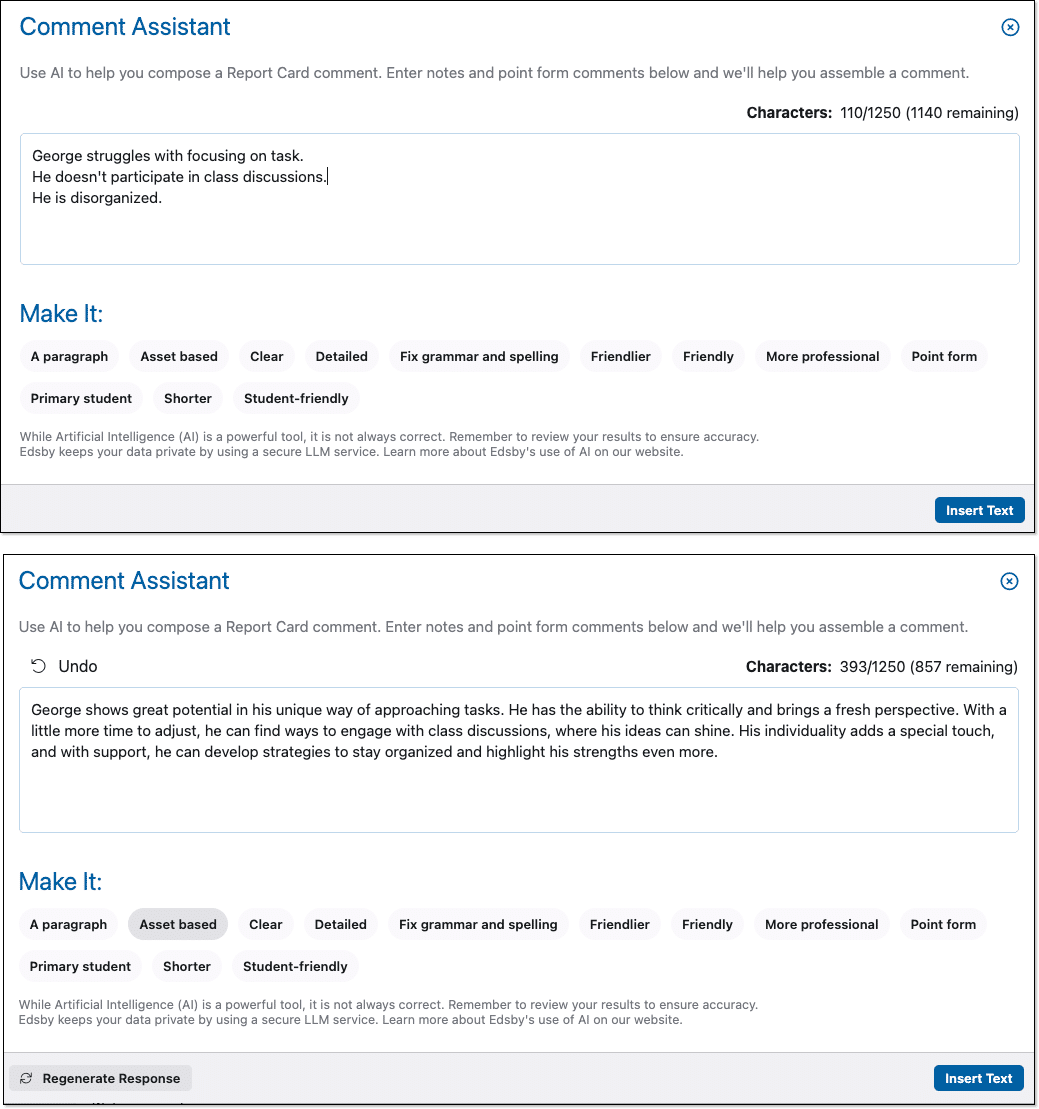
In this example, the teacher has added points that lists ways in which the student is struggling. Selecting the Asset based prompt will write a comment that emphasizes learning and growth.
Critique Writing tool
The Critique Writing tool can significantly streamline the grading process for teachers. It allows for quick and efficient assessment of student PDF submissions. Using the “General Critique” and “Provide a detailed summary of spelling and grammar errors” prompts, the teachers can instantly receive valuable insights into a student’s work. This automated analysis can help teachers identify common errors across submissions, pinpoint areas where students need additional support, and focus their attention on more complex aspects of the assessment, such as critical thinking and analysis. Ultimately, the AI Teacher Assistant tool empowers teachers to grade more efficiently, provide more targeted feedback, and improve the overall quality of student work. By leveraging the AI Teacher Assistant tool, teachers can enhance the efficiency and effectiveness of their grading practices, ultimately leading to improved student learning outcomes.

Summarize Thread tool
The Summarize Thread tool helps teachers save time by grasping essential information without reading the entire conversations and reduces the cognitive overload from long discussions. The tool is available in classes and groups.
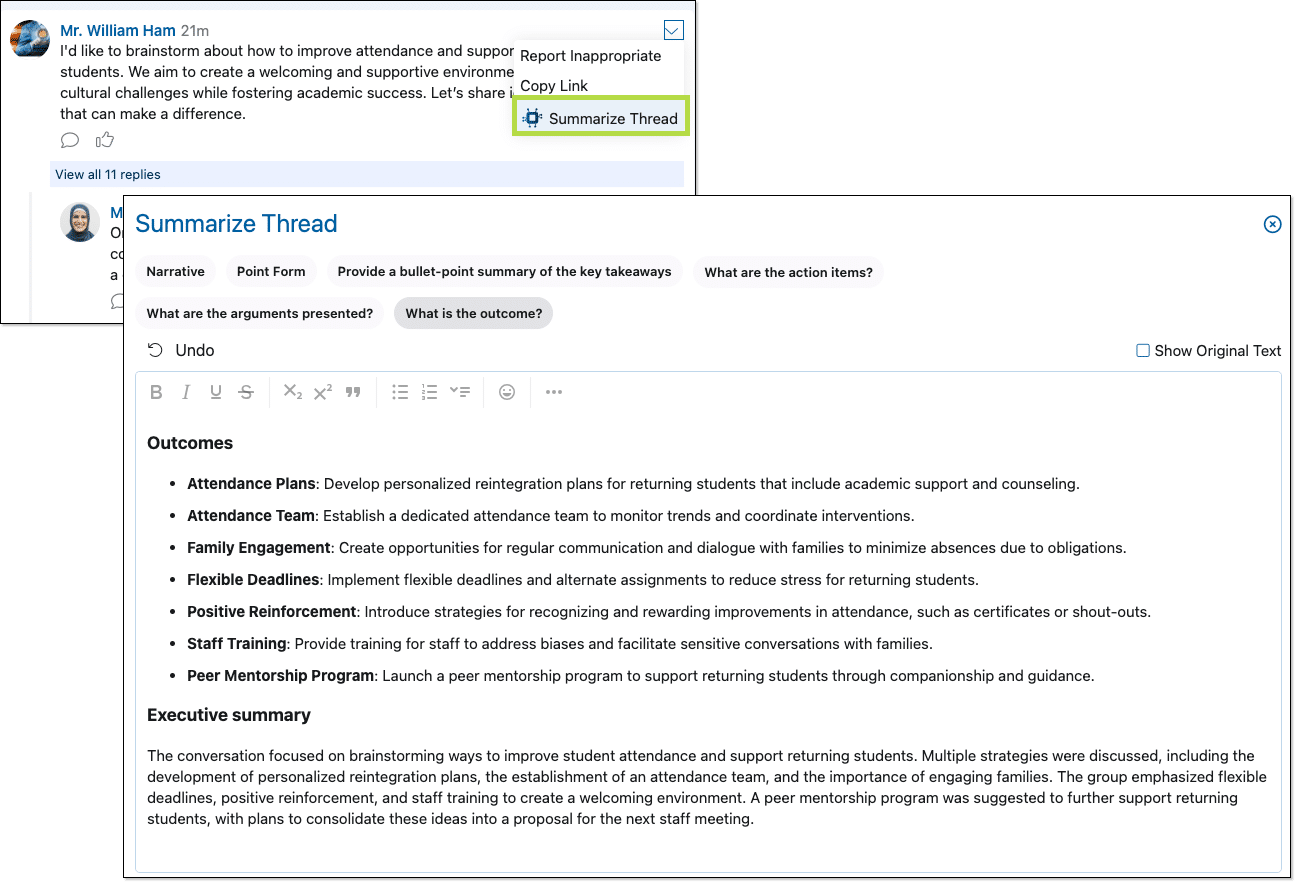
These are the following prompts teachers can choose from when using the Summarize Thread tool:
Narrative:Provides a flowing, story-like summary of the text.
Points:Presents a bullet-point list of key takeaways and arguments.
Provide a bullet-point summary of the key takeaways:Similar to “Points,” this option focuses on extracting the core ideas.
What are the action items? Identifies any specific actions or steps suggested in the text.
What are the arguments presented?Highlights the different perspectives or viewpoints expressed.
What is the outcome?Summarizes the conclusion or result of the discussion or event.
Text Composer tool
The Text Composer tool is a valuable resource for teachers, offering a range of prompts that can significantly enhance their effectiveness in communicating with students. Teachers can leverage the “Brainstorm” prompt to generate ideas and expand on initial thoughts, transforming basic lesson outlines into detailed plans or engaging assignments. The Text Composer can be used to refine existing written content, ensuring accuracy and clarity through prompts like “Fix Spelling and Grammar” and “Clear.” The “Translate” prompt facilitates communication with multilingual learners and parents, breaking down language barriers and fostering inclusivity. The Text Composer empowers teachers to streamline their workflow, improve their communication, and create more enriching learning experiences for their students.
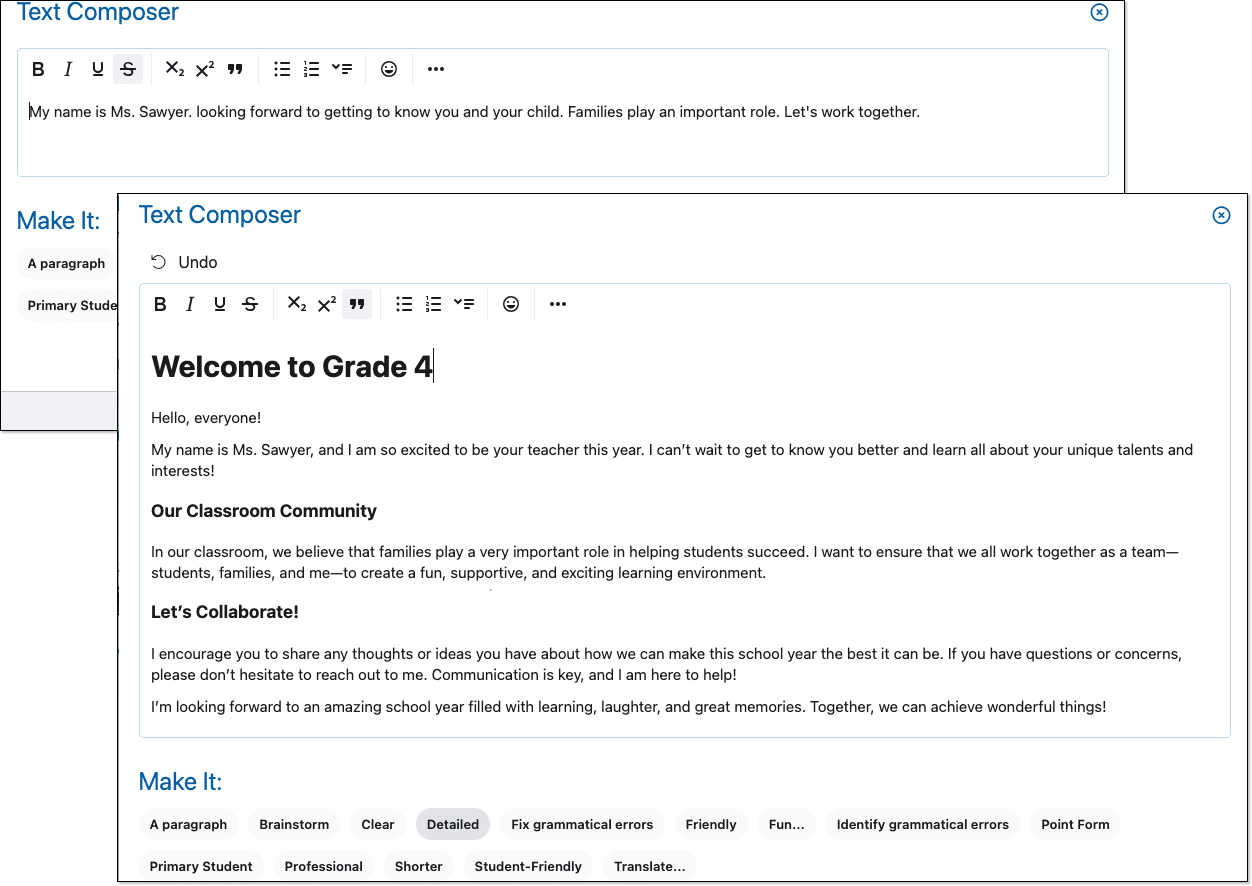
To see what each prompt does, hover over the text and a description will appear, for example:
A Paragraph: Converts text into a concise paragraph.
Brainstorm: Brain storms on a particular topic that teachers enter.
Clear: Improves the clarity of the text.
Detailed: Attempts to improve the text by expanding on the orginal text.
Fix grammar and spelling: Fixes all grammar and spelling errors.
Friendly: Gives a friendly tone to the text.
Fun: Displays multiple prompts for teachers to choose from, including a prompt to write the text in the style of an author with ‘Change voice’.
Point form: Converts the text to a set of bullet points.
Primary student: Rewrites the text in primary student friendly language.
Professional: Improves the professionalism of the text.
Shorter: Makes the text shorter.
Student Friendly: Rewrites the text with student-friendly language.
Translate: Translate the text into another language.

AI Usage Limits in Edsby
Edsby includes AI usage limits to ensure fair access and prevent excessive use. These limits help balance individual and district-wide needs while providing clear notifications when usage approaches critical levels. There are four types of limits: soft and hard limits for both individual teachers and entire districts.
Individual limits apply to a teacher’s personal AI usage. A soft limit serves as a warning when usage is high, but AI features continue to function normally. If a teacher surpasses their hard limit, AI features will be disabled until usage resets at the start of the next month. Similarly, districts have soft limits that notify teachers when overall AI usage is approaching its maximum. If a district exceeds its hard limit, AI access is disabled for all teachers, even those who have not reached their personal limits.
By implementing these limits, Edsby ensures that AI resources are distributed fairly across all teachers.
Edsby has four types of AI usage limits, designed to ensure fair access for all users while preventing excessive usage. These limits apply both to individual users and to School Districts. Here’s how they work:
Individual Soft Limit
This is a warning limit for a teacher’s AI usage. AI features will continue to function as usual.
If a teacher’s AI usage exceeds this limit, they will receive a notice such as:
“You have used 80% of your AI usage limit. Your access will reset on December 1, 2025.”

Individual Hard Limit
This is the maximum AI usage allowed per teacher. At this point, AI features will be disabled until next month.
If a teacher surpasses this limit, they will see a message such as:
“You have reached 100% of your AI usage limit. Your access will reset on December 1, 2025.”
District-Wide Soft Limit
This is a warning limit for the entire district’s AI usage. AI features will continue to work.
If the district collectively exceeds this limit, all teachers who have not reached their individual limits will see a message such as:
“You have used 80% of the district’s AI limit. Your access will reset on December 1, 2025.”
District-Wide Hard Limit
This is the maximum AI usage allowed for the entire district. AI features will be disabled across the district until the next month.
If the district surpasses this limit, all teachers who have not reached their personal limits will see this message:
“You have reached 100% of your AI usage limit. Your access will reset on December 1, 2025.”
These limits help ensure fair access to AI tools in Edsby while keeping the system running smoothly for all teachers and districts.