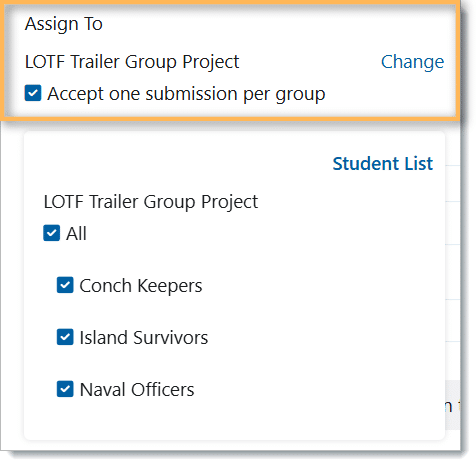
Class Groups are special groups within a class that support student collaboration. The teacher can create groups that allow student participation or provide targeted resources to a group of students. Through the assessment form, the teacher can enable a submission on behalf of the group.
The teacher can also create Class Groups that are only visible to the teachers of the class. These hidden groups can be used to create individualized assessments.
Class Groups are accessed from the Students panel and are created through a form. Permissions are easily managed through the form, giving educators full control over group access and visibility.
In this example, the teacher has created Class Groups to enable students to collaborate on a group presentation. The teacher can access the groups by clicking on the group name.
Additionally, the teacher has created Class Groups based on the courses the students are enrolled in. These groups will be used to speed up the creation of assessments. The teacher can choose to keep these hidden from students.

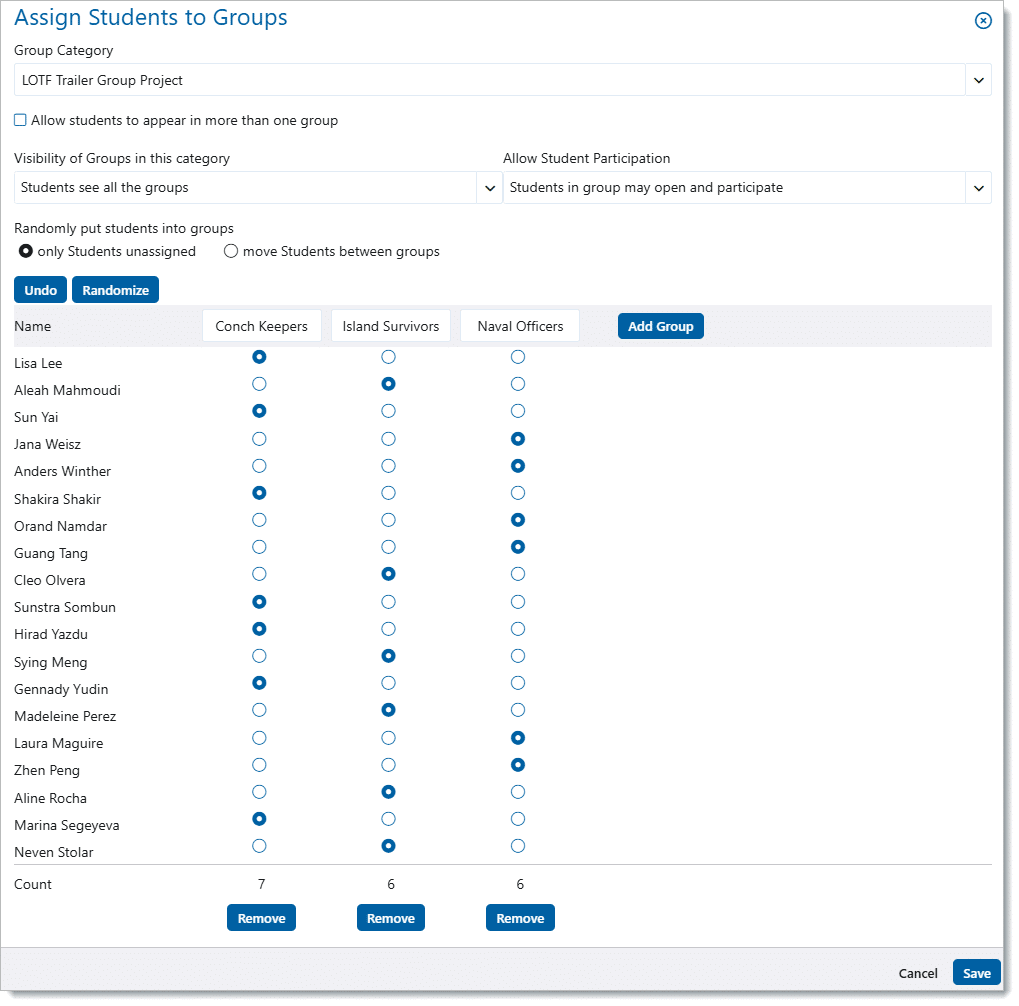
To create a Class Group, click New Group Category. After naming the group category, the following form appears. The teacher sets the student visibility by selecting one of the following options:
| Students see all the groups | The students can see the name of the
groups in this category and see the names of which students are in the groups. |
| Students only see the groups they are in | The students can only see the name of the
groups they are a member of. The students can see the names of the other members. |
| Hide groups from students | Only the teachers of the class can see the groups and the membership list. The groups can be used to create individualized assessments. |
The teacher sets the student participation level by selecting one of the following options:
| Students in group may open and participate | Students see the group listed in their Groups panel. Students can post messages, create events, and contribute to the Knowledge base. |
| Students in group may open but not participate | Students see the group listed in their Groups panel, but can only read content created by the teacher. |
| Students cannot open the group | Students see the group listed in their Groups panel but cannot open the group. This setting can be used to temporarily block access to the groups. The group can be removed from the students’ home screen by changing the visibility option. |
The teacher can select which group or groups the student is a member of by clicking the radio button. The teacher can also randomly put the students into groups by clicking “Randomly put students in the group”.
Once the form is saved, the groups are created, and the visibility and participation options are set. Teachers can make changes by clicking on the gear icon and making adjustments to the form.
Using Class Groups in Assessments
The assessment form gives the teacher the option of selecting a subset of students. If the teacher has created Class Groups, they will have the option to select one or more of the groups. If the assignment enables the students to submit a file, the teacher can choose to have one submission per group.