

The Progress Report enables teachers to create a printed report of their student’s progress to distribute with parents and students. The Progress Report can be used as a helpful tool during parent-teacher interviews, as an indicator of student progress for the students, or even as a report card substitute for private schools.
To create a Progress Report, navigate to the Gradebook and click the gear icon, then click Progress Report. Complete the form. A new column will appear in the Gradebook. Click Open to print the report and edit the form.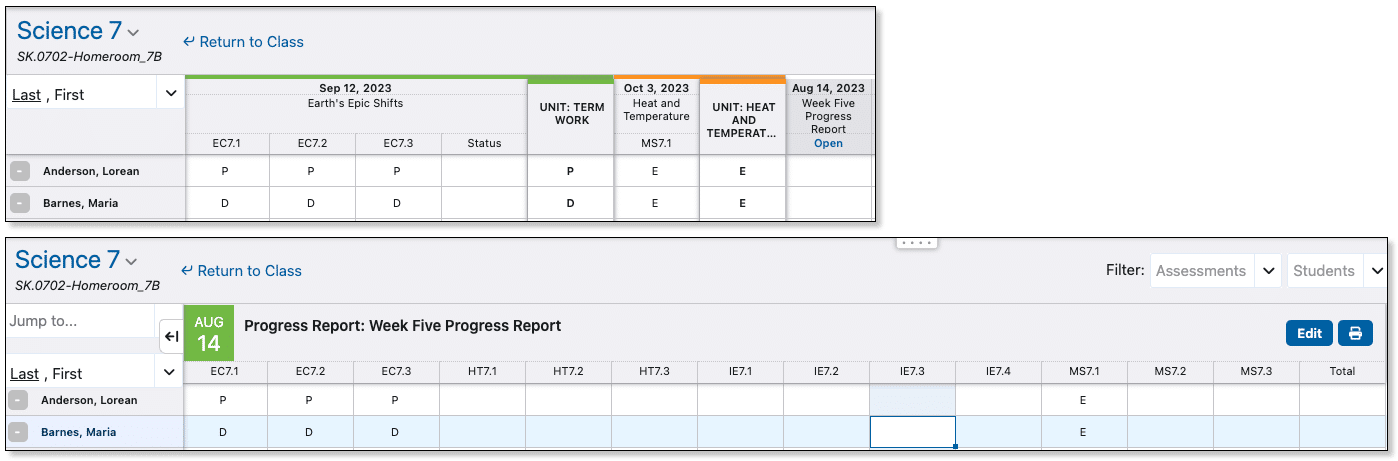
Teachers have many options within the Progress Report. First, start by creating a title for the Progress Report. In this example, we are going to use the Progress Report to communicate with parents about how their child is doing in week 5 of the school year.
Teachers can print a report for all students, select specific students to include in the Progress Report, or they can choose to include dropped students. For example, if a few students in the class need extra support in their learning, the teacher can create a Progress Report for just those students and distribute it with their parents so they can support their child’s learning at home.
Then, teachers can select the dates for the Progress Report. Choosing ‘Any date’ will include data from the entire Gradebook, choosing ‘In a reporting period’ enables teachers to select a reporting period and will only include data from that reporting period, and choosing ‘Date Range’ enables teachers to select specific dates and will only include data from within that date range.
Teachers can choose what to show in the Progress Report. Teachers can choose which, if any, assessments to include in the Progress Report. The list of assessments can be any selection of incomplete, shared, ungraded, and unshared,
If shared assessments are included in the printed report, a graph can be included by checking the Graph checkbox.
When teachers include summaries, more options will appear on the form. The list will include Overall Average, General Learning Outcomes, and Specific Learning Outcomes. However, the choice of Summary columns is dependent on the curriculum.
The Assessments, Evidence, and Include Unshared checkboxes control what data the summary columns will use to pre- calculate the grades. If these fields are left blank, the summary columns will be blank and the teacher can use professional judgment to enter grades.
For example, if the teacher has chosen to summarize by Strand, using the mean, and showing as a percentage, any grades from the Gradebook that include Strands will be averaged using the mean and will show in the Progress Report as a percentage. If no assessments have been created using Strands, no grades will appear in the Progress Report. Grades can also be filled in manually and overridden in the Progress Report. For a Progress Report that has multiple fields or strands included, the report will only show what fields have been filled in. If teachers do not wish to fill in each field, they don’t have to.
The grades can be summarized using the mean, median, mode, latest, highest, or count. Teachers can choose how the grade appears by using the ‘Show As’ selection.
The Class Comment enables teachers to write a general comment for the class and will be used for every student, it can be written or changed using the box.