

For school districts using Edsby for report cards, report card sheets are generated for teachers every reporting period, pre-populated with Edsby gradebook and attendance data to make completing them easier.
Usually, these report card forms are made available to teachers near the end of a reporting period at a time chosen by a district administrator. Once the time has come, teachers will see links to the report card forms on their Edsby homepages and within the classes.
Using Report Card Fill
Edsby provides a powerful report card fill feature. The Field picker enables teachers to select any data-fillable field on the report card sheet, including drop-downs such as Learning Skills, and quickly fill it with the required information. Fill can target selected students and also supports replacing cell contents.

How to Use Edsby’s Field Picker to Fill Report Card Fields
Teachers can choose to fill the comment fields of students with blank cells, all students, or cells for selected students.
In this example, James Harris has selected a comment from the comment library for one of his students and would like to use the same comment for all Level 4 students in the class. With the cursor in the comment box, Click Fill.

To use a part of a comment, highlight the comment that will be used. Click Fill.
The Field drop-down will automatically be set to comment and the comment will be translated into standard Edsby comment mechanisms.

To use a different comment or add more comments from the comment library, click on the comment library search bar. The comment library will drop down with options to filter comments by grade, subject, course code, tags, and more. To remove unwanted filters, such as tags or subjects, click the tag or subject again, or select reset all filters to remove all selected filters. Select the desired comment and click the X to close the comment library.

Choose the students to apply the existing comment by either selecting them individually from the list or selecting Level 4, and clicking Fill & Close. To continue filling report card fields, just click Fill. The comment will be added to all of the Level 4 students on the report card sheet.

Teachers can follow this same procedure to fill All Cells or Blank Cells with an existing comment from the report card by highlighting the desired comment and selecting the appropriate option in the Fill window.

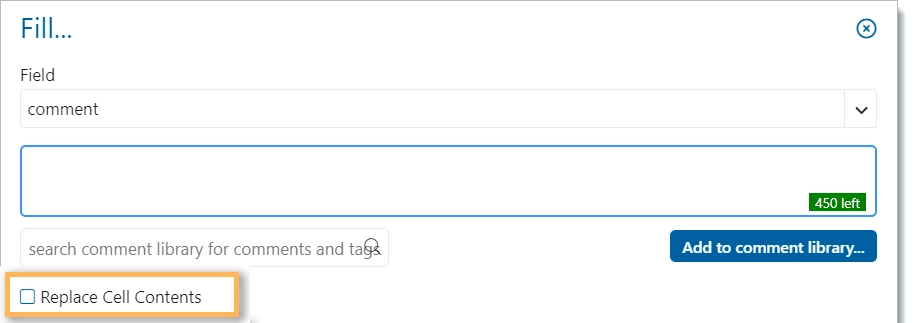
When using the fill feature, make sure to be aware of whether the “Replace cell Contents” is checked.
- If this checkbox is not checked – especially for filling comments – then any comment filled will add-on to already existing comments that the teacher has already entered.
- If this checkbox is checked – especially for filling comments – then any comment filled will replace any already existing comments that the teacher has already entered.
Filling Grade Field
Teachers can choose to fill the Grade fields of blank cells, all cells, or cells for selected students.
In this example, James Harris would like to assign a grade of 85 to multiple students in his class. He will fill the grade field of one of his students with 85, highlight the grade and click Fill.

The Field drop-down will automatically be set to Grade.

Select the students for which to apply the same grade and click Fill & Close. Selecting Fill enables teachers to continue filling report card fields. The grades will be added to the report card sheet.

Teachers can choose to apply the same grade to any blank grade cells in the report card by choosing Select Blanks. If desired, teachers can also choose to apply the same grade to all students in the class by choosing Select All.

Other Edsby Report Card resources
Consult these other Edsby report card resources to learn more about report card sheets:
Using Evidence in Report Cards
Final Report Card tips
How report card activity is saved
Any data that teachers enter in report card sheets is automatically saved into the report card template after 3 seconds. Report Card comments are also automatically saved after 30 seconds of continuous typing, or after navigating away from a comment. ‘Navigating away’ from a comment includes logging off, switching sheets, or clicking on another field in the report card sheet.
Note teachers are automatically logged out of Edsby after 60 minutes of inactivity.
Do not use Edsby in multiple browser tabs when entering report card data
If a teacher has more than one instance of their Edsby report card sheet open in their browser, and is only entering comments or data on one of the tabs, this can impact the auto-save function on report card sheets.
Ensure only one teacher is entering report card data in one class at a time
When a class has multiple teachers, ensure that only one teacher at a time is working on the report card sheet. Similarly to the problem above with multiple tabs, if there are 2 instances of the Edsby report card sheet open in different tabs/ browsers, this can impact the auto-save function on report card sheets.