

Edsby Workflows enable office heads to create, distribute, and manage field trip workflows in Edsby. Navigate to Workflows using the Workflows Zoom. The Office Head can create a new workflow here or manage existing requests from teachers. Click the + icon to create a new workflow. Custom workflows are created by the district and determine what options are available. If a workflow is not visible, it has not been made available for use.

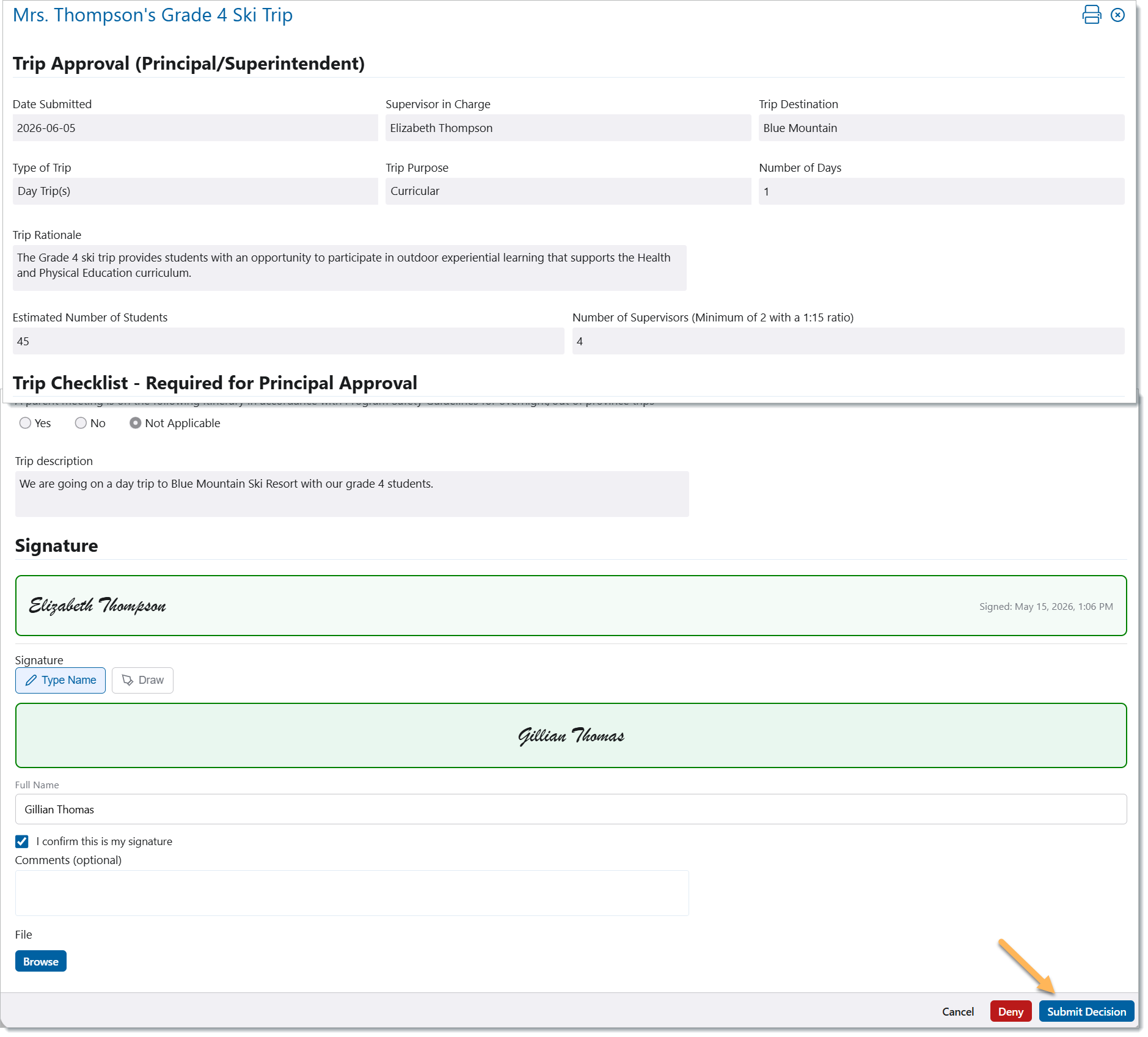
When a teacher submits a request for a field trip, it must be approved by the office head. To manage a workflow, select it from the list. Office heads can view the form by clicking Review & Decide.

To approve the request, sign the form and click Submit Decision. To deny the request, simply click deny and then provide a reason for denying the trip. Office heads may also include comments or attach files if needed.

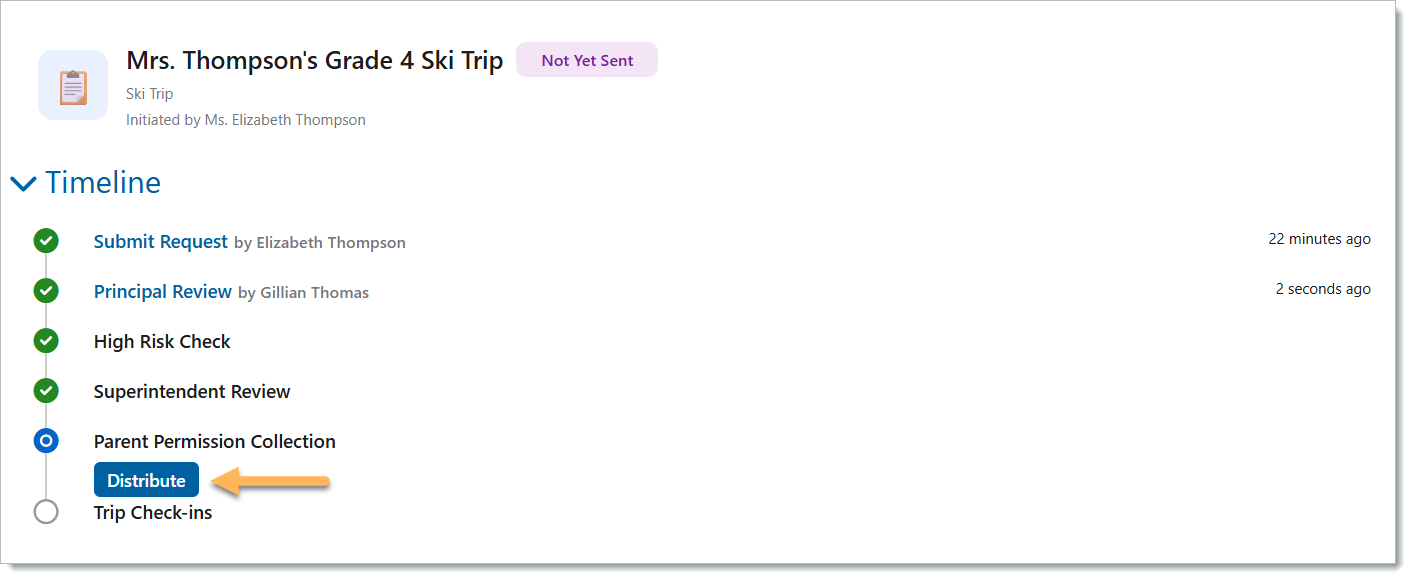
Once the trip has been approved, office heads can distribute permission forms to parents by clicking Distribute.
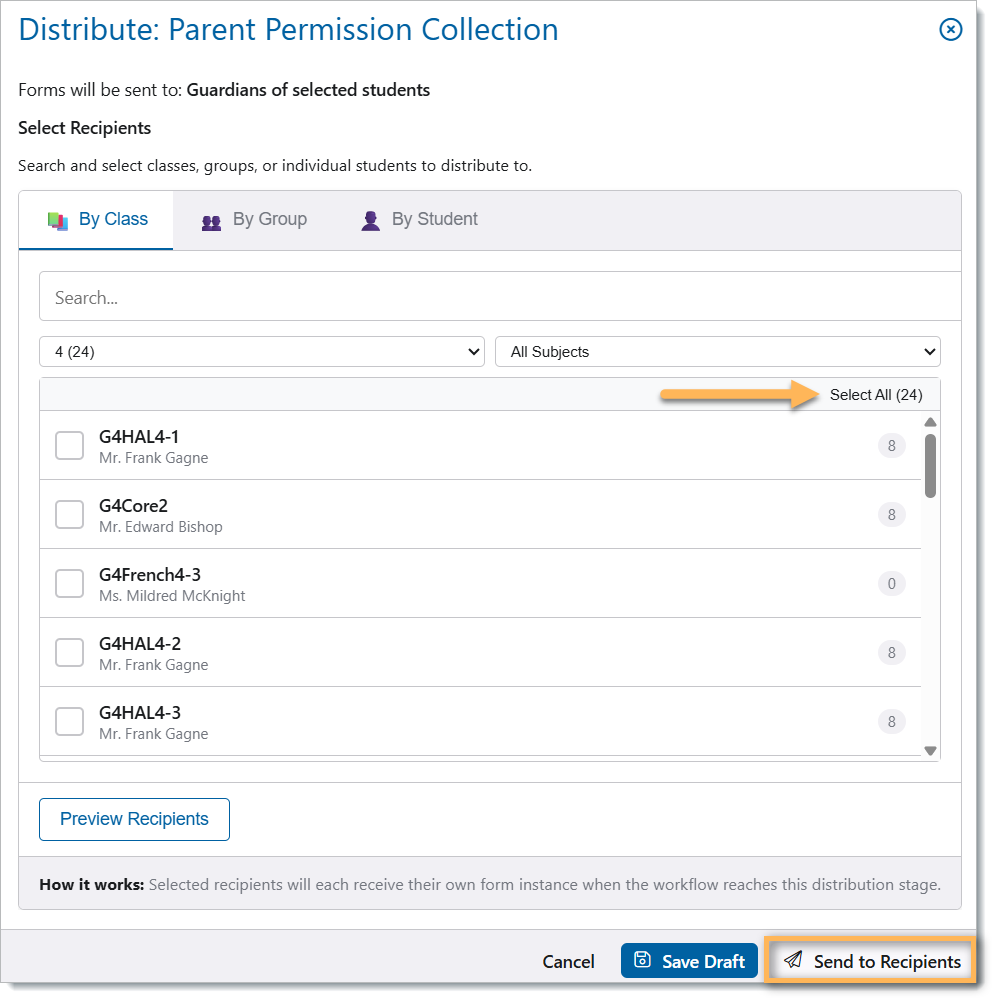
Forms can be distributed by class, by group, or by student. This trip is for grade 4 students, so click on grade 4 classes, select all, and Send to Recipients.
Click Preview Recipients to preview the selected list of students and their guardians. Any students without a guardian on file will be flagged here.

Office heads can edit the list of recipients and view a list of responses, including any students who need a resolution. In this case, Lorraine Santos and John Hall do not have any guardians on file.

Once the guardians have been contacted, they can come to the office and fill the form out by hand, or the office head can submit the form on their behalf. Click the three dots and select Resolve. To print the form for a parent or guardian, click the printer icon. To submit a form on behalf of a parent or guardian, fill out the form with the guardian’s information and sign the form. Click Amend Submission to grant permission on behalf of the guardian, click Deny to deny the request.

Office heads can open a table view of parent responses that includes information from the permission form.

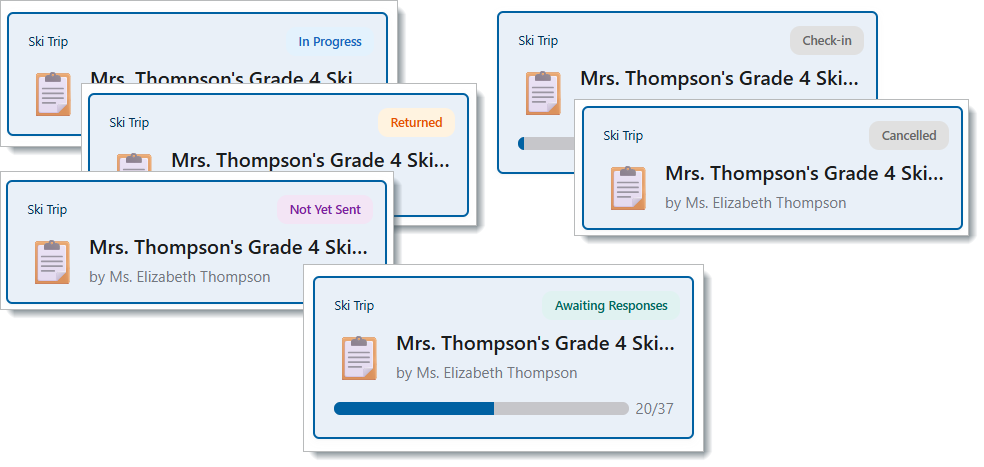
The progress bar indicates how many responses have been received, and the status flag indicates which stage the workflow is currently in.
When it is time to stop accepting responses, the office head can close the distribution stage by clicking ‘Stop accepting responses’.
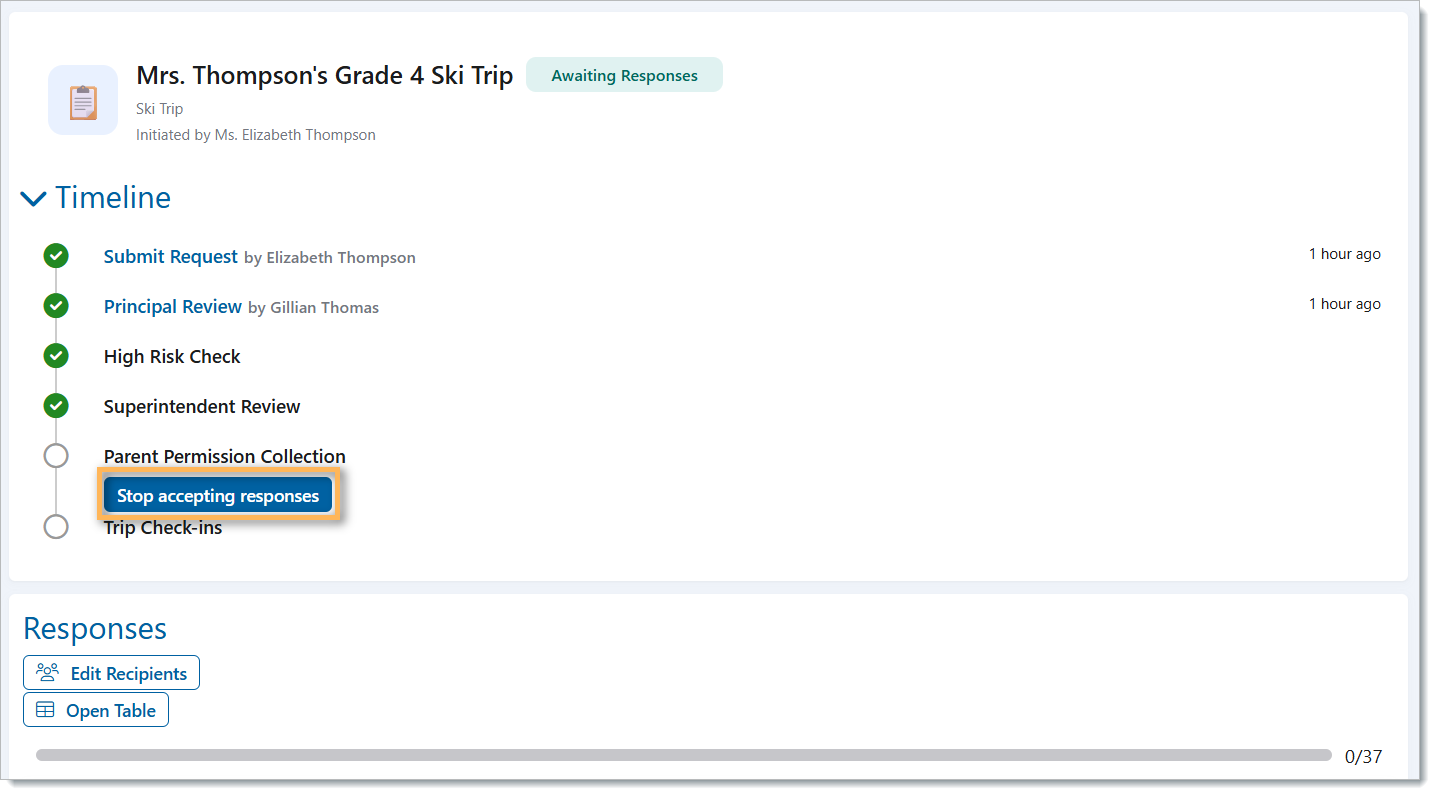
Once the distribution stage has been closed, office heads can create check-ins for the trip and print passes on behalf of the teacher. The students will travel by bus to the ski resort for this trip. Mrs. Thomas would like to create a check-in for students when they board the bus in the morning and another when they board the bus in the afternoon, so she will click New Check-in and create 2 check-ins. Check-ins can be named.
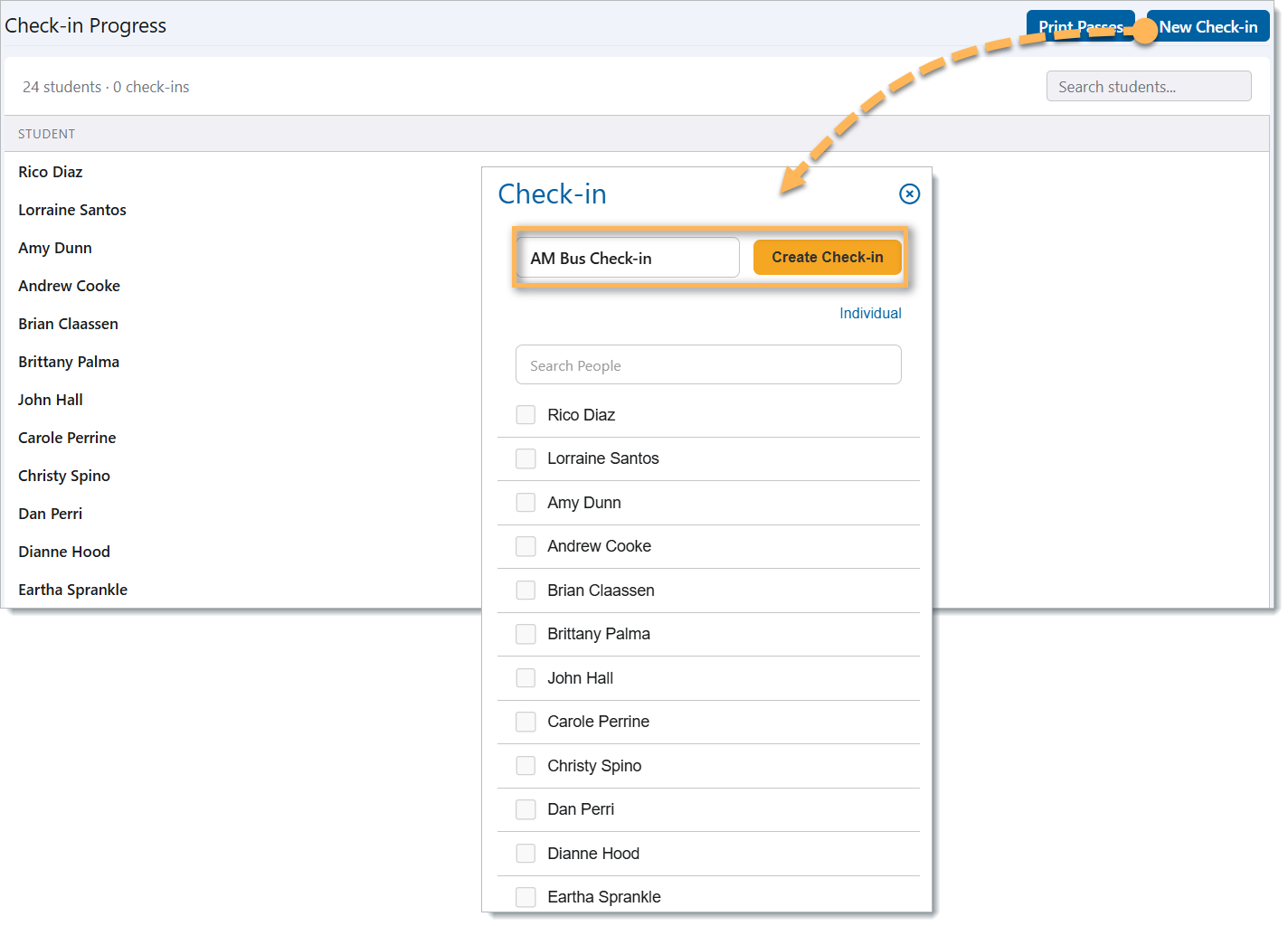
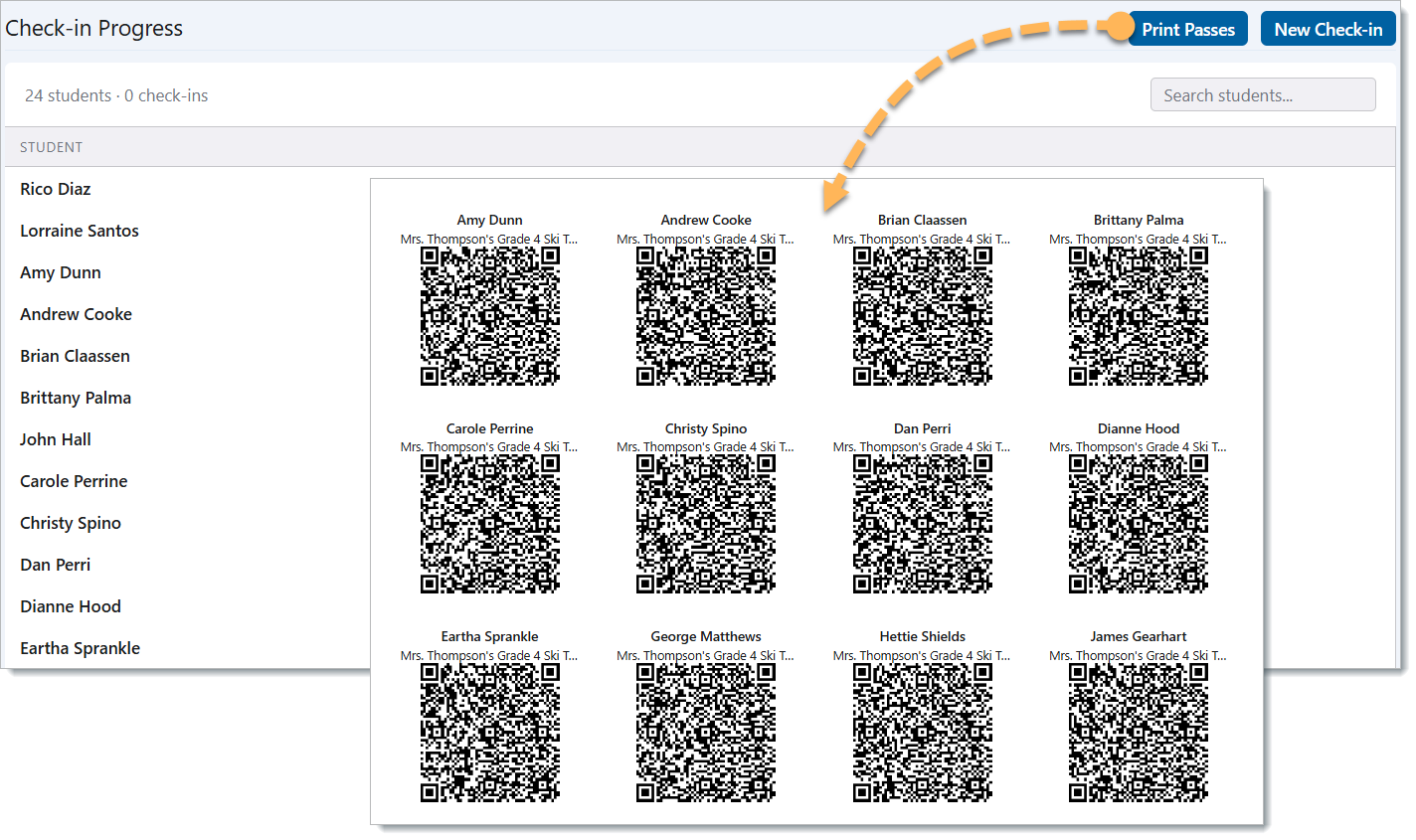
Once check-ins have been created, they can be activated when it is time to check students in for the trip. Office heads can create as many check-ins as they need. Passes can also be printed for students in the form of a QR code by clicking ‘Print Passes’.
Once the check-in has been activated, either scan the QR codes of the students present on the bus or select them manually from the list. Students can be selected individually, and notes can be added to students here.

Once all students present have been checked in, close the check-in by clicking ‘Close Check-in’ at the bottom of the student list. Mrs. Thomas is going to repeat this process for the afternoon bus ride back to the school. Check-ins can be reactivated at any time by selecting them and clicking ‘Open Check-in’.
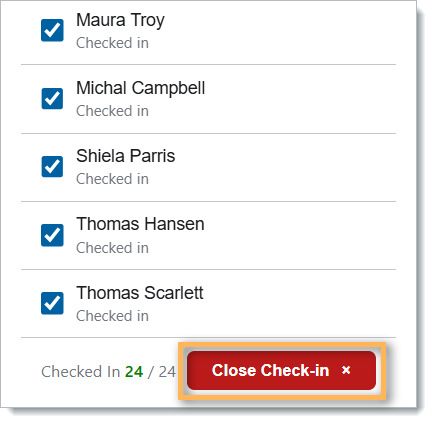
When the trip is complete and all check-ins have been closed, office heads can close the check-in stage of the workflow.
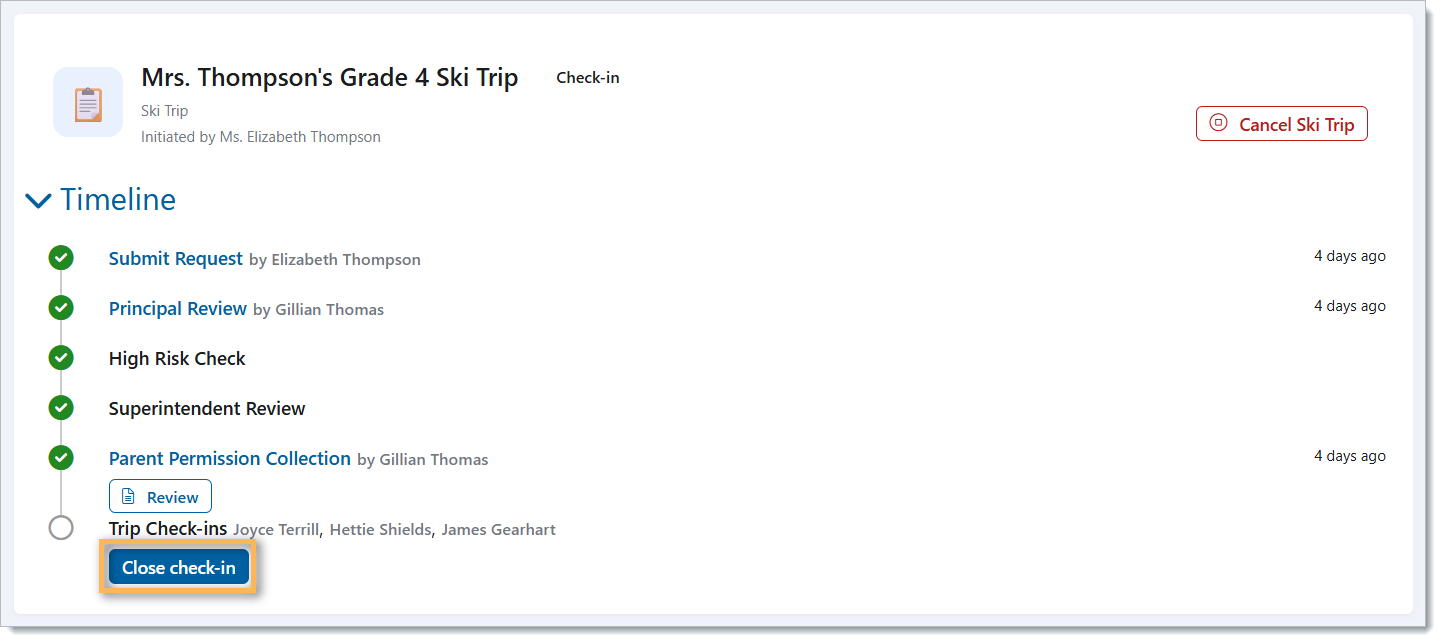
Once the trip is complete, the trip status will change to ‘Completed’. Information about the trip can still be viewed by clicking on the blue text or the review button.

Teachers can cancel a trip at any stage. The trip will be flagged as cancelled, and the Workflow will show which stage the trip was cancelled at. The office will see that the trip has been cancelled by the teacher. The office cannot cancel a trip; it must be done by the teacher.
