Edsby September 2026 update
Edsby has added many new features in recent months. Our September 2026 focus brings improvements to tools teachers already use every day, making everyday tasks faster, more flexible, and easier to manage. It also introduces several optional new capabilities that give schools and districts even more ways to see, track, and support student growth.
Not all new features are available to users immediately. It’s often up to individual schools or districts/regions when or if they choose to introduce specific new Edsby capabilities.
Please keep sharing your feedback and suggestions; they help us continue to make Edsby the leading student success system for K-12 teachers, students, parents, and administrators worldwide. Teachers and admins can share Edsby ideas by clicking the question mark on the navigation bar when logged into Edsby on a browser and selecting “Suggest a new feature.”
Edsby support and other designated roles at customer sites can access the full list of September 2026 enhancements in a document available in the Release Notes section of the Edsby support portal.
New Font Options
Edsby offers font choices designed to support users with ADHD and dyslexia. Users can select their preferred accessibility font under Other Settings, making Edsby content easier to read for a wider range of learners.

My Students and My Parents Zooms
Teachers can see students and parents based on the classes that are visible on their home screen in their My Students and My Parents Zooms, Previously, only students enrolled in classes currently in session were listed.

This change enables teachers to use the My Students Zoom before the first day of school:
- Send bulk messages to parents, or to both parents and students. Bulk messages are delivered as BCCs, keeping recipient addresses private.
- Export student and parent list for use in spreadsheet programs.
- Print roster lists for students enrolled in all classes.
- Invite students and parents to groups.
Rubrics Enhancements
Sharing Rubrics
Teachers can share rubrics by copying a rubric from the Personal Folder and then posting it in a group. Within the goup, teachers can click on the rubric to view the contents. To copy the rubric, click the three dots. The rubric can be copied and pasted into the Personal Folder. Once in the Personal folder the teacher can edit the rubric or create additional versions of the rubric. Any rubric in the Personal Folder can be used in an assessment.

Rubrics and formative assessment enhancement
Rubrics attached to formative assessments now display a checkmark in the rubric cell rather than the scale’s symbol, reflecting the educational principle that formative assessment is about feedback and growth, not grades. The student’s My Work Report displays the rubric feedback rather than the level.

Rubric Comments in the Gradebook
Comments can be added directly to rubric rows and are visible when the rubric is viewed in the Gradebook. Comments can be added to both formative and summative assessments.
Comments are optional. When a teacher enters a comment in the rubric row, it appears when it is viewed the in teacher’s Perspective. If the Assessment is shared, the comments are visible in the student/parent My Work report. If no comment are entered, the comment column does not appear when the rubric is viewed.

Artboard enhancements
Teachers can lock elements when creating an artboard. This option has benefits when creating an Activity. It preserves a starting point so students can only add to the artboard, and keeps every student working from a same unchanged base for easier comparison. It also helps students by preventing accidental changes, such as stray clicks moving or deleting positioned items, which reduces frustration for those still building mouse or trackpad skills.
When an element is added to the artboard, it can be locked/unlocked by selecting from the menu or by using a keyboard shortcut (Shift L).
A duplicate option has been added and the delete icon has been changed to a trash can. The aspect ratio is maintained when resizing via corners. Resizing width or height independently crops the image.

Like a rubric, artboards can be shared with other teachers by posting them to a group. When another teacher pastes the artboard into a new activity in their own class, the teacher can lock or unlock elements before sharing the activity with their class.
Improved Google and Microsoft file selection
Attaching files from Google Drive and Microsoft OneDrive is now easier with a refreshed file selection experience. The file list now fills the full width of the window, with checkboxes moved to the left. In List view, a master checkbox in the column header enables teachers to select all files in a folder at once. Folder breadcrumbs now display the full path when navigating into subfolders, and file sizes are visible in the list.
The action buttons have been renamed for clarity: “Attach Live File” links to the original file in Google Drive or OneDrive so it always reflects the latest version, while “Attach Copy” attaches a snapshot of the file at the time of sharing.

Introducing Edsby Destinations
Edsby has introduced Edsby Destinations, a new optional standards-based grading system with a focus on formative assessment and documenting evidence of learning for school districts and private schools embracing competency-based education. The new Destinations system requires an upgrade to your organization’s Edsby subscription.
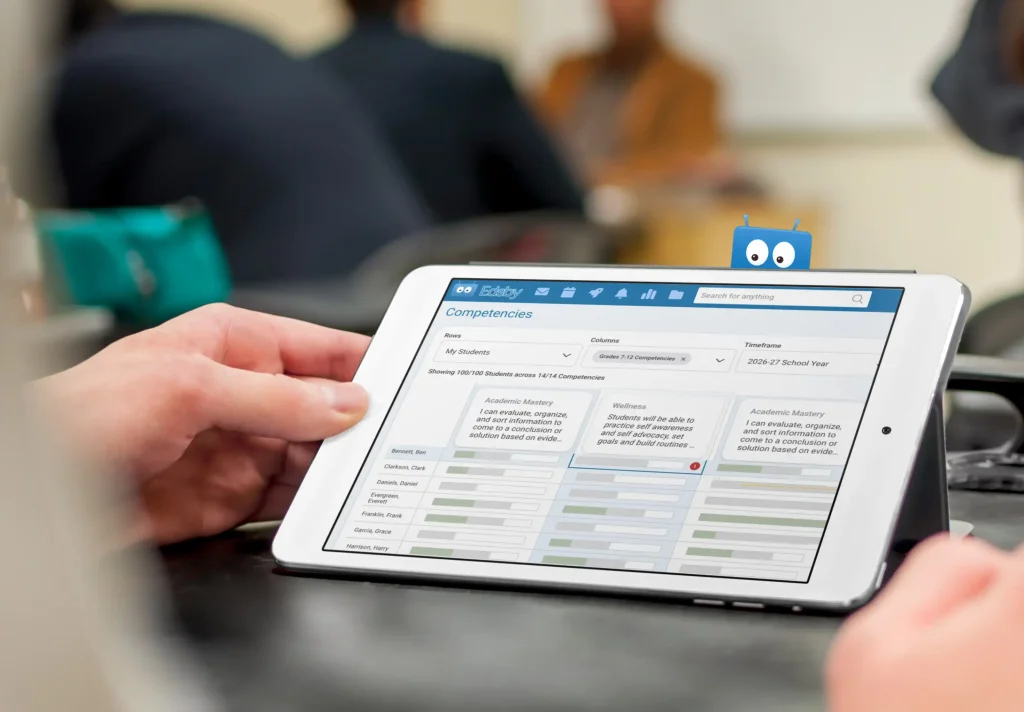
Competencies are a new way to track broader skills and outcomes that follow students throughout their entire schooling journey, not just within a single course. Similar to learning skills or a “Portrait of a Graduate” model, Competencies are created and defined by the district, giving every school a consistent way to track skills like critical thinking, collaboration, or communication over the course of a student’s time at the school.
Competencies appear in the Classes panel for both teachers and students to access. Teachers get a dashboard that lets them filter by student group, competency category, and past school years to see growth over time, along with the ability to track evidence of each competency’s success criteria.

Students get their own dashboard organized into three categories: “What I’m Working On,” “Upcoming Competencies,” and “What I’ve Demonstrated,” letting them see their growth in real time and take ownership of their own progress.

Competencies are a powerful way to make the skills that matter most visible, trackable, and meaningful for every student, every year.
Demonstrations
With new Demonstrations, teachers can track exactly how and when students are making progress towards achieving the success criteria of defined learning Destinations, which can mirror local outcomes, standards, expectations or competencies.
Demonstrations are a timeline of attempts and student claims, leading up to the completion of the success criteria. Demonstrations let teachers drill into any Learning Destination and assess student progress through the success criteria. Teachers are able to mark each attempt that a student makes at attaining the success criteria with a simple checkmark. Every demonstration can include a comment, and teachers can also attach evidence like photos or files, all of which flows directly into the student’s Destination feed for a rich, ongoing record of their learning. To make things easier for the teacher, recent comments are saved for quick reuse, enabling teachers to give consistent and timely feedback across a whole class within seconds. Demonstrations enable teachers to see a timeline of attempts and progress that a student makes when trying to attain a success criteria.

In addition to the dashboard, teachers can also record demonstrations for a specific student. The teacher sees past demonstrations while recording new demonstrations.

Demonstrations in Evidence items
Teachers track how individual pieces of learning evidence relate to each success criterion in a destination, marking each criterion as met, not met, or not yet demonstrated by that evidence item. Evidence items display the Demonstrations panel if the destination has success criteria configured.

Attainments panel added to the student Panorama
The Attainments panel gives teachers a full picture of a student’s progress across every subject in a compact view. The Attainment panel is available to a student’s current teachers and staff with the school-level roles of Senior, Admin, Office Head, and Guidance. Key benefits include:
- Instant cross-subject overview without opening individual classes
- Color-coded bars show attainment level distribution at a glance
- Expandable subjects reveal strand-level detail to pinpoint specific strengths or gaps
- Supports teachers, guidance, and school administrators with a ready-made whole-student summary


Introducing Edsby Forms & Workflows
Edsby Forms & Workflows replaces paper forms, approvals and signatures with a digital solution built specifically for K-12. The new system is designed around how districts and schools operate, with routing and approval hierarchies that reflect K-12 organizational structures, and real-time visibility into completion status at the teacher, school and district level. Edsby Forms & Workflows brings the safety and efficiency of digital forms and approvals to everyday school processes, from field trips to award nominations, saving schools time while giving parents a simple way to complete forms from any device. The system requires an upgrade to your organization’s Edsby subscription.
Edsby Forms
Every student’s Panorama already brings together their academic history and background in one place. Edsby Forms make it possible to build on that foundation, adding exactly the information a school needs beyond the defaults.
Some forms might be open to any role that can view the Panorama. Others can be restricted by role. A Student Risk Assessment, for instance, might only be visible to Senior Admin and Guidance staff, keeping sensitive observations limited to the people responsible for acting on them.
Forms are flexible by design. A simple comment box works when a quick note is needed in the Panorama. A fully structured form with prompts and required fields works better when consistency matters, such as making sure every risk assessment covers the same ground regardless of who fills it out.

Forms can also be created within Groups, so they can be scoped to a specific team or audience. For example, an IT staff Group might use a Work Request form, while the group shown below uses a Student Award Nomination form to collect nominations from the staff.

Edsby Workflows
Edsby Workflows save principals and school office staff time by automating routine paperwork. Workflow Forms route themselves to the right people for approval, so nothing gets lost in a backpack and no one has to chase down stragglers or reprint forms. Every step is documented with a digital signature and timestamp, giving administrators a full audit trail and real-time visibility into who has signed off and who hasn’t.
For parents, Edsby Forms and Workflows offers a single, secure way to complete school forms from any device, including a phone. Because Edsby already knows student biographical data, that information is filled in automatically, so parents don’t have to enter it themselves every time a new form requires attention.

Parents can complete the entire form on a phone. The School Office also has the option of helping parents submit the form, if necessary.

This public document is an abstract of September 2026 Edsby platform enhancements. More complete details are available for Edsby site administrators in the Edsby customer support portal.